Mitsubishi Heavy Industries · Wi-Fi control

Control your Mitsubishi Heavy Industries air conditioner from your phone

MyAirco is an Android app for supported Mitsubishi Heavy Industries Wi-Fi air conditioners. Your smartphone talks straight to the unit on your home network - every room on one screen, saved favourites for your everyday settings, and no account, cloud service or tracking.

Android · English interface · Celsius or Fahrenheit · No subscription

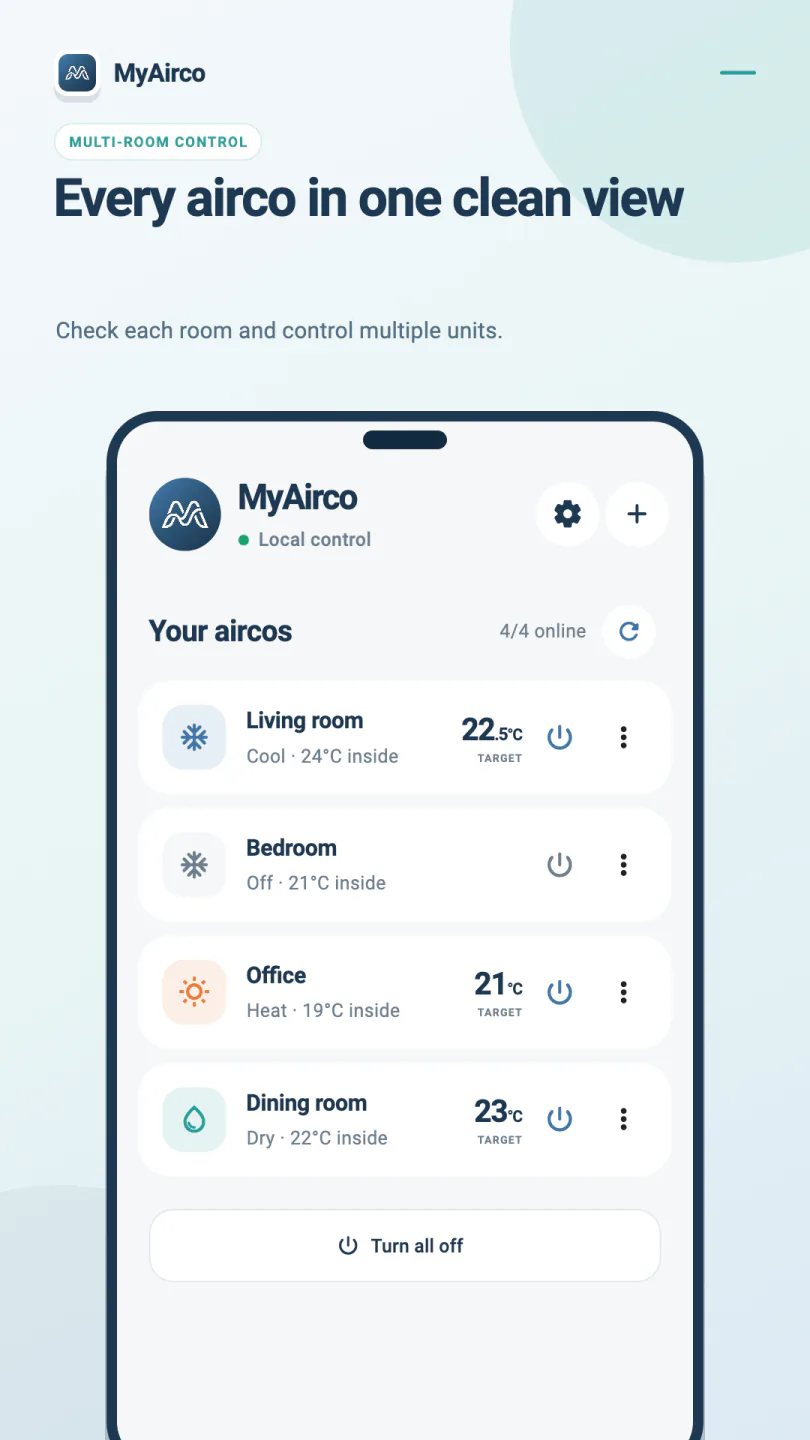
The MyAirco app home screen on a smartphone, listing four Mitsubishi Heavy Industries air conditioners - living room, bedroom, office and dining room - each with its mode, indoor temperature and target temperature.
  • No accountNothing to sign up for
  • No cloudCommands stay on your Wi-Fi
  • No adsNo analytics or tracking in the app
  • No subscriptionNothing recurring to pay

About the app

A dedicated app for Mitsubishi Heavy Industries air conditioners

Adjust your air conditioner from your Android phone. Change the temperature, choose cooling or heating, and adjust the fan and airflow on supported Mitsubishi Heavy Industries units. Save your everyday settings as a named favourite for each room.

Your phone sends commands directly to the air conditioner over your home Wi-Fi. There is no MyAirco account or cloud service between them. Everyday control keeps working during an internet outage while your router and units remain connected.

Looking for a Smart M-Air alternative? MyAirco works independently, without a hub or Home Assistant. It is for control while you are at home; your phone and air conditioners must be on the same network.

The app includes English and four other languages, with Celsius or Fahrenheit. Check your air conditioner’s compatibility before installing.

What you get

Everyday controls, saved just the way you like them

Adjust a room, save a favourite and return to it with one tap. Keep an overview of your air conditioners and choose your language and temperature unit in Settings.

Daily control

Power, mode and temperature

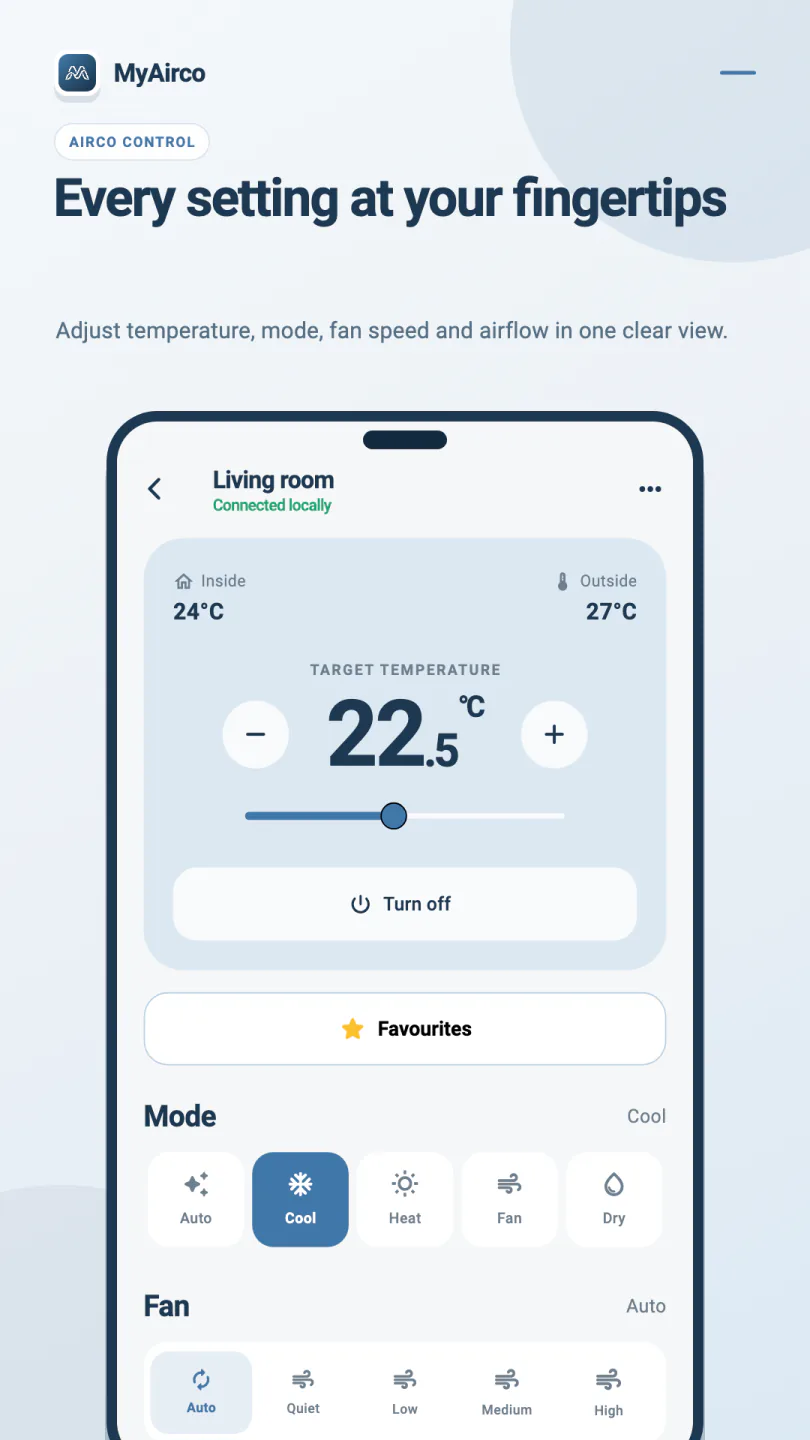
Check the indoor and outdoor readings, switch a unit on or off and set the temperature with the slider or buttons.

  • Cool, heat, dry, auto and fan modes
  • Target temperature in half-degree steps
  • Temperature readings where the unit reports them
Favourites

Save the settings you use most

Create a Quiet night or Quick cool favourite for each air conditioner, then apply your saved settings with one tap.

  • Save power, mode, temperature, fan and airflow
  • Name, apply, rename or delete favourites
  • Stored on your phone, separately for each air conditioner
Airflow

Fine-tune the fan and louvres

Choose the fan speed and airflow direction, or let 3D Auto manage the airflow on supported units.

  • Auto, quiet, low, medium and high fan speeds
  • Vertical and horizontal louvre positions
  • 3D Auto where the air conditioner supports it
Whole home

Every air conditioner on one screen

Give each unit a room name and see which air conditioners are online. Open a room for its controls or favourites.

  • Mode, target and indoor temperature at a glance
  • Refresh all units or turn all off
  • Automatic discovery with manual IP entry as a fallback
Setup

Guided Wi-Fi setup

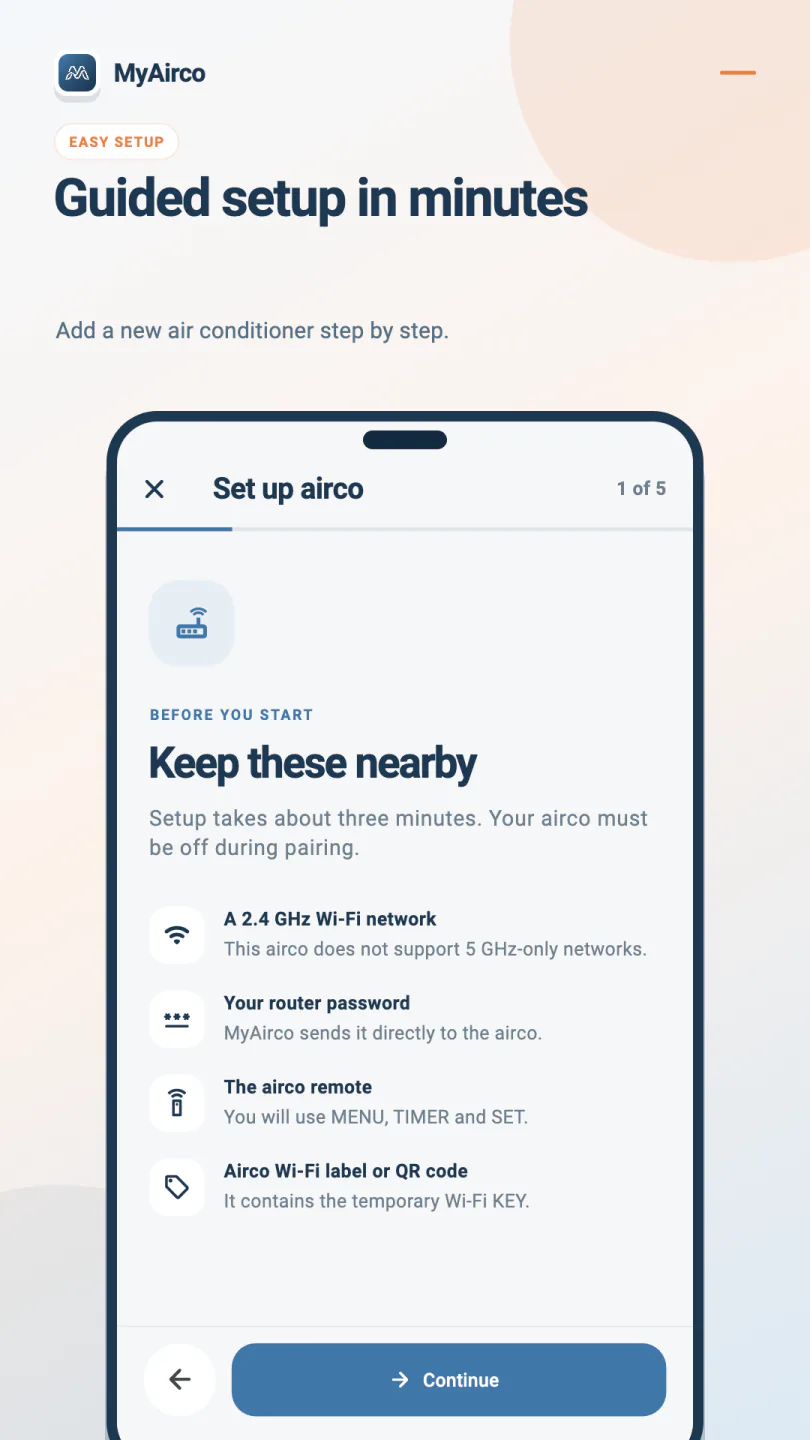
Connect a new Wi-Fi adapter to your 2.4 GHz home network with five clear steps and a checklist before you begin.

  • Keep the remote and module Wi-Fi label nearby
  • Choose a Wi-Fi network or enter its name
  • Router password sent to the module and never saved
Settings

Your language, your temperature unit

Open the cog on the home screen to choose how MyAirco works for you.

  • English, Dutch, German, French and Spanish
  • Choose Celsius or Fahrenheit
  • Privacy policy and open-source licenses in one place

A closer look

Built to be read at a glance

From room temperatures and airflow controls to named favourites and personal settings: see how MyAirco fits your daily routine.

MyAirco app control screen on a smartphone for a Mitsubishi Heavy Industries air conditioner in the living room, showing inside and outside temperature, a 22.5 degree target, mode selection and fan speed.
Wi-Fi controlCheck temperatures and change the target, mode and fan speed from your phone.
MyAirco favourites screen with named presets for Quiet night, Quick cool and Eco, each with an Apply button.
Your favourite settingsSave a setup with a name and apply it again with one tap.
MyAirco controls for mode, fan speed, vertical and horizontal airflow, with 3D Auto enabled.
Fine-tune the airflowChoose the mode, fan speed and louvre positions, or use 3D Auto on supported units.
The MyAirco setup wizard on step one of five, listing what to keep nearby before pairing a Wi-Fi adapter with a home network.
Guided setupFive short steps take a new Wi-Fi adapter onto your home Wi-Fi.
The MyAirco privacy policy explaining Wi-Fi control, device data and favourites stored on the phone.
Private by designThe full privacy policy is in the app, not buried on a website.
MyAirco settings with language selection, Celsius and Fahrenheit, privacy policy and open-source licenses.
Make it your ownChoose your language and temperature unit, with privacy information close at hand.

Wi-Fi at home

Control your air conditioner over Wi-Fi, without an online account

Most connected air conditioners route every tap through a manufacturer's server and back. MyAirco skips that trip entirely and stays inside your house.

Speed

No round trip to a data centre

A command travels smartphone → router → air conditioner. There is no login session to refresh, no server to wake up and no queue to wait in, so the unit responds while your thumb is still on the screen.

Resilience

Works when the internet is down

Because nothing depends on an outside service, MyAirco keeps controlling your Mitsubishi Heavy Industries air conditioner as long as the Wi-Fi router is running - and it cannot be switched off by a cloud service being retired.

Independence

A Smart M-Air alternative with no hub

MyAirco discovers and drives Wi-Fi adapters by itself. How it compares with a cloud app. You do not need Smart M-Air, a Home Assistant server, a vendor hub or a bridge device - just the app on your phone and the module already fitted to the unit.

How it works

How to connect your air conditioner to Wi-Fi

Install the app and join your Wi-Fi

Download MyAirco from Google Play and make sure your smartphone is on the same network as your Mitsubishi Heavy Industries air conditioners. Allow the app to find devices on your Wi-Fi if Android asks for permission.

Add your air conditioners

Already paired Wi-Fi adapters are discovered automatically. For a brand-new module, the guided five-step setup connects it to your 2.4 GHz network using the air conditioner remote and the Wi-Fi label on the unit.

Name your rooms and save a favourite

Give each unit a recognisable name. Set the temperature, mode, fan and airflow, then wait for the changes to finish. Open Favourites and save the current settings with a name, ready to apply next time.

Before you install

Which Mitsubishi Heavy Industries models work with MyAirco?

MyAirco connects to your air conditioner through its Wi-Fi adapter. Check the lists below to see which air conditioners and modules are supported before buying anything.

Works with the MyAirco app

  • Mitsubishi Heavy Industries (MHI) residential air conditioners
  • Units with a supported Wi-Fi adapter, named WF-RAC or WF-RAC-HTTPS
  • A smartphone and air conditioners on the same Wi-Fi network
  • A 2.4 GHz network for connecting a supported Wi-Fi adapter

Example compatible Mitsubishi Heavy Industries models: SRK20ZS-WFSRK25ZS-WFSRK35ZS-WFSRK20ZSX-WFSRK25ZSX-WFSRK63ZR-WF
Model ranges vary by country, and a supported Wi-Fi module is always required.

Not supported

  • Mitsubishi Electric systems of any kind
  • MELCloud and MELCloud Home
  • MAC-587IF and similar Mitsubishi Electric adapters
  • MHI units without a Wi-Fi module fitted
  • Remote control from outside your home network

Mitsubishi Electric and Mitsubishi Heavy Industries are separate companies. Their Wi-Fi adapters use entirely different protocols, so an app for one will never reach the other.

Check your local model and app availability

MyAirco has a full English interface, English setup guides and a choice of Celsius or Fahrenheit. Your unit may be described as an air conditioner, aircon, AC, heat pump or reverse-cycle split system. The name alone does not confirm compatibility: check the full Mitsubishi Heavy Industries model number and the fitted WF-RAC or WF-RAC-HTTPS module with your installer. Product ranges and Wi-Fi interfaces differ between countries.

Open the MyAirco listing on Google Play to check availability for your country and device and see your local price before buying. MyAirco controls supported units while your phone is on the same home network; it does not provide control while you are away.

Privacy

Your climate. Your control. Your data stays home.

MyAirco has no account system and no backend to send anything to. Commands travel from your phone to the Wi-Fi adapter across your own router, and that is the whole journey.

  • Named favourites and their settings stay on this phone
  • No advertising, analytics, crash-reporting or tracking SDK
  • Air conditioner names, identifiers and IP addresses stay in on-device storage
  • Your router password lives in memory only while setup is open
  • Android backup and device-to-device transfer are disabled
  • Traffic limited to private and link-local network addresses
  • HTTPS certificates pinned on modules that support them

Questions

Frequently asked questions about the MyAirco app

Which Mitsubishi Heavy Industries air conditioners work with the MyAirco app?

Mitsubishi Heavy Industries residential air conditioners fitted with a WF-RAC or WF-RAC-HTTPS Wi-Fi module. Example models include SRK20ZS-WF, SRK25ZS-WF, SRK35ZS-WF, SRK20ZSX-WF, SRK25ZSX-WF and SRK63ZR-WF. Ranges differ per country, and the Wi-Fi module is always required.

What is a Wi-Fi adapter?

A Wi-Fi adapter connects your air conditioner to your home network so an app can read its status and send commands. MyAirco supports adapters named WF-RAC and WF-RAC-HTTPS. Check the connection guide or ask your installer which adapter is fitted.

Is MyAirco a Smart M-Air alternative?

MyAirco is an independent app that controls the same Wi-Fi adapter directly on your home network, so it works without Smart M-Air (also written Smart M Air), without Home Assistant and without a cloud account. It is not a drop-in replacement for anything that needs a remote connection - MyAirco only works while your smartphone is on the same Wi-Fi as the air conditioner.

Does the app work with Mitsubishi Electric or MELCloud?

No. Mitsubishi Electric systems, including MELCloud, MELCloud Home and MAC-587IF adapters, use a different protocol and are not supported.

Do I need an account or a subscription?

No. There is no MyAirco account and no subscription. The app talks directly to your own hardware on your own network.

Does the app need an internet connection?

No. Everyday commands never leave your home network. As long as your Wi-Fi router is running, MyAirco reaches the air conditioner even if your broadband is down.

Can I control the air conditioner from my phone while I am away from home?

No. MyAirco works over your home Wi-Fi. Your phone and air conditioners must be on the same network. You cannot use it to control the air conditioner while you are away from home.

Does MyAirco work with Home Assistant?

MyAirco does not need Home Assistant, a bridge or any other hub - it discovers and controls Wi-Fi adapters on its own. It is a standalone smartphone app rather than a Home Assistant integration, so it runs alongside such a setup rather than replacing it.

Why does the app not find my air conditioner?

MyAirco discovers Wi-Fi adapters with Bonjour/mDNS, which some routers and guest networks block. Check that your phone is on the same Wi-Fi as the unit and that you allowed the app to find devices on your Wi-Fi. If discovery still fails, add the air conditioner by typing its IP address manually.

Does MyAirco collect my data?

No. There is no advertising, analytics or tracking SDK. Your settings stay in the app's storage on your phone, and the router password entered during setup is never saved.

How do I pair a new Wi-Fi adapter?

Use the guided five-step setup in the app. Keep a 2.4 GHz network, your router password, the air conditioner remote and the module's Wi-Fi label or QR code nearby. It takes about three minutes, and the air conditioner must be off during pairing.

Is there an iPhone version of MyAirco?

MyAirco is available today as an Android app on Google Play, and an iOS version for iPhone is on its way.

Can I save favourite air conditioner settings?

Yes. Set the air conditioner the way you like and wait for the changes to finish. Open Favourites, choose Save current settings and give the favourite a name, such as Quiet night or Quick cool. It saves power, mode, target temperature, fan speed, both airflow directions and 3D Auto. Tap Apply to use it again while connected to the air conditioner. You can save multiple favourites per air conditioner, rename them or delete them. Favourites are applied manually; they are not timers or weekly schedules.

Are my favourites shared between phones?

No. Favourites are saved per air conditioner on this phone and are not synced to other phones. Removing an air conditioner from MyAirco also deletes its favourites on that phone.

Can I choose Celsius or Fahrenheit?

Yes. Open Settings using the cog on the home screen and choose Celsius or Fahrenheit under Temperature unit. You can also change the app language and open the privacy policy or open-source licenses there.

Which languages does the app support?

English, Dutch, German, French and Spanish. Open Settings using the cog on the home screen, then choose Language.

What does the MyAirco app cost?

The current price is shown on the MyAirco listing on Google Play. There is no subscription and no advertising.

MyAirco app icon

Your rooms. Your favourite settings.

Add your supported Mitsubishi Heavy Industries air conditioners, save the settings you like and control each room from your phone over your own Wi-Fi.