
Articles
How to connect a Mitsubishi Heavy Industries air conditioner to Wi-Fi
Put the Wi-Fi adapter into AP mode with the remote, join the Smart-M-Air network and hand the air conditioner your 2.4 GHz Wi-Fi. Roughly three minutes, step by step.
A Mitsubishi Heavy Industries air conditioner only becomes app-controllable once its Wi-Fi adapter has joined your home network. That pairing happens once, takes about three minutes, and needs the physical remote as well as your phone - the module will not accept a network any other way.
Model numbers and remote controls vary by country. These steps are for a supported WF-RAC or WF-RAC-HTTPS interface. If your remote does not show the options below, use the wireless connection guide supplied with your exact model rather than trying a different service-menu setting.
This article walks through the whole flow using MyAirco, which talks to the module directly over your own Wi-Fi. No account and no cloud service are involved at any point.
Before you start
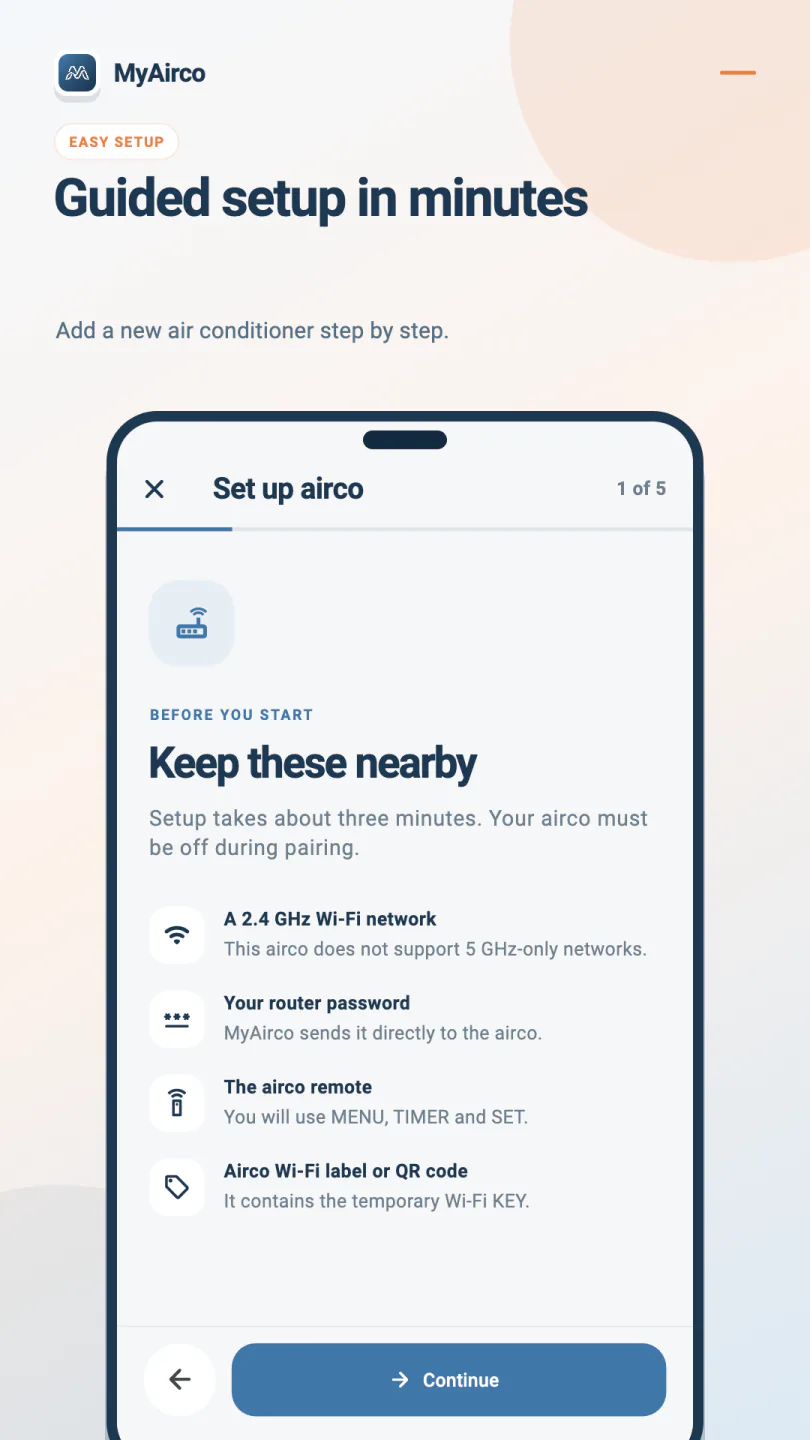
Get these four things within arm's reach. The wizard opens with the same checklist, because missing one of them is the usual reason a pairing stalls halfway.
- A 2.4 GHz Wi-Fi network. The module does not support 5 GHz-only networks. If your router publishes one combined name for both bands, that is fine.
- Your router password. MyAirco sends it straight to the air conditioner and keeps it in memory only while the setup screen is open.
- The air conditioner remote. You will use the
MENU,TIMERandSETbuttons. - The Wi-Fi label or QR code on the unit. It carries the temporary
KEYyou need in step 3.
Switch the air conditioner off first
The unit must be off during pairing. If it is running, turn it off with the remote before you begin.
Connecting the Wi-Fi adapter step by step
- Start the setup wizardInstall MyAirco, tap Add airco, then Set up a new airco. Keep your air conditioner switched off - it must be off during pairing.
- Put the air conditioner into AP modeOn the remote, press MENU repeatedly until SL appears. Use the TIMER arrow buttons to select E2, then press SET. The unit beeps and the Wi-Fi light starts blinking.
- Join the air conditioner's temporary Wi-FiIn your phone's Wi-Fi settings, connect to the Smart-M-Air-XXXX network using the KEY printed on the air conditioner's Wi-Fi label. A "no internet" warning is expected - stay connected.
- Hand over your home networkBack in MyAirco, pick your 2.4 GHz network from the list or type the name, then enter the router password. It is sent straight to the module and never saved.
- Reconnect and name the roomPut your phone back on your home Wi-Fi. The air conditioner appears on the home screen, where you can rename it to the room it is in.
You have five minutes
AP mode times out. Finish the remaining steps within five minutes of pressing SET - if the window closes, just run through MENU, SL, E2, SET again to restart it.
What the remote is actually doing
Pressing MENU until SL appears opens the remote's service list. E2 is the entry that puts the indoor unit's Wi-Fi module into access-point mode, and SET confirms it. The beep and the blinking Wi-Fi light are your confirmation that the module is now broadcasting its own temporary network.
That temporary network is the Smart-M-Air-XXXX one you join in step 3. It exists only so your phone can hand the module your real network credentials. Once it has them, the module drops its own network and joins yours.
Common snags
The "no internet" warning on your phone
Expected, and harmless. While you are connected to Smart-M-Air-XXXX you are talking to the air conditioner, not the internet. Android may offer to switch you back to a working network - decline, and stay connected until the wizard moves on.
Your network is not in the list
MyAirco can show nearby networks, but Android only allows that with nearby-device and precise foreground location permission, because it protects Wi-Fi scan results behind them. You can decline and type the network name by hand instead. Hidden SSIDs have to be typed anyway, and the module accepts WPA and WPA2 networks.
The air conditioner never responds
Check that your phone really is on Smart-M-Air-XXXX and that the Wi-Fi light is still blinking. If the light has gone out, AP mode has timed out - restart it from the remote and try again.
After pairing
Back on your own Wi-Fi, the unit shows up on the MyAirco home screen with its current mode and indoor temperature. Give it the name of the room it is in, and repeat the whole process for any other units - each one pairs separately.
If the air conditioner paired successfully but does not appear in the app, that is a discovery problem rather than a pairing problem. The app does not find your air conditioner? Seven fixes covers it, including the manual IP fallback.